1. Product Overview Global Counselor is a kiosk and tablet application that lets people who speak different languages talk to each other in real time. It is used wherever staff need to serve foreign visitors — schools, hospitals, police stations, tourist information desks — so that the counsellor and the visitor can each use their own language.
참고
The app itself displays the name 글로벌 상담사 (Global Counselor). This manual uses "Global Counselor" throughout.
1.1 Core Values#
Item Description Real-time translation Translated into the other person's language as you speak Voice support Speech recognition (STT) and speech output (TTS) Ease of use An intuitive touch-based interface
1.2 Where It Is Used#
University international offices that counsel foreign studentsHospitals registering and screening foreign patientsPolice stations and public service desks that need interpretationTourist information desks, banks and offices needing multilingual service
1.3 What You Need#
Item Description Tablet A tablet or kiosk with the app installed Internet connection Required for translation and speech recognition Microphone permission Required to use voice input
주의
Translation and speech recognition run through a server, so the app does not work without an internet connection.
2. Key Features 2.1 Real-time Multilingual Translation#
Supports a wide range of languages.
Messages are translated automatically when sent.
The source text and the translation are shown together.
2.2 Speech Recognition (STT)#
Uses Push-to-Talk (PTT) . Speech is recognised only while you hold the microphone button down.
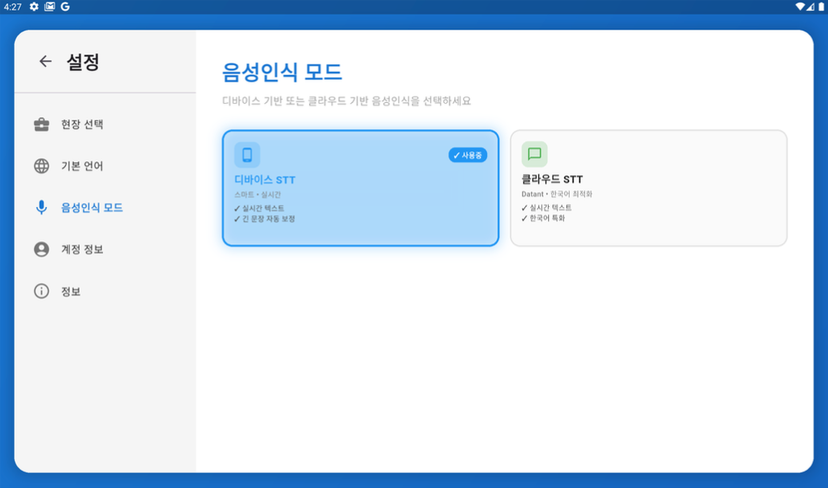
Mode Characteristics Device STT The device's built-in recognition. Handles all languages in real time and auto-corrects long sentences Cloud STT Korean-optimised cloud recognition. Selecting another language switches automatically to Device STT
2.3 Speech Output (TTS)#
Uses Google Cloud TTS.
Reads translated messages aloud automatically.
Can be toggled on and off with a button.
2.4 Real-time Chat#
Multiple devices can connect at once.
Messages sync in real time.
Participant count and names are displayed.
2.5 Question Mode#
The question mark (?) button sends a message as a question. A ? is appended automatically.
2.6 Interview Mode (Host only)#
Interview several interviewees one after another.
Switch sessions with the Next Interview button.
The conversation record is preserved.
2.7 Saving and Emailing Transcripts#
When a consultation ends, the conversation is saved automatically on the host device .
Saved sessions can be viewed under Settings → Consultation History .
Saved records can be sent by email.
중요
Transcripts are stored only on the host device. Guest devices do not keep a copy.
3. Getting Started 3.1 Launching the App#
Touch the 글로벌 상담사 (Global Counselor) app icon on the tablet.
A splash screen appears while the app initialises.
3.2 Choosing a Language and Starting#
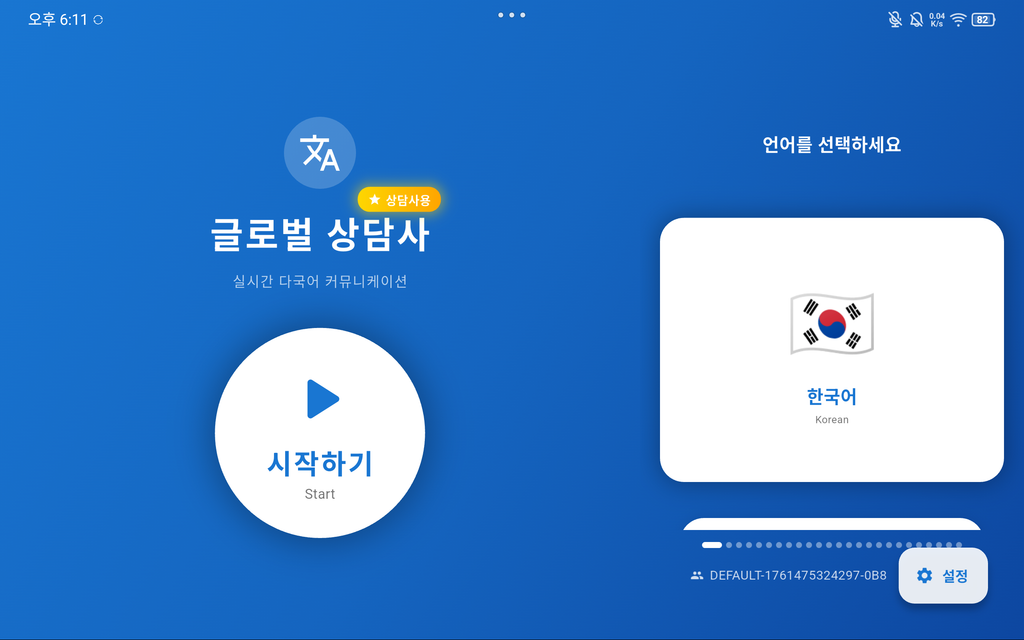
Select the language you will use on the landing screen.
Touch 시작하기 (Start).
A usage guide dialog appears.
Language selection landing screen 팁
The language chosen here is the language of the person using this device. Set the counsellor's device to Korean and the visitor's device to the visitor's own language.
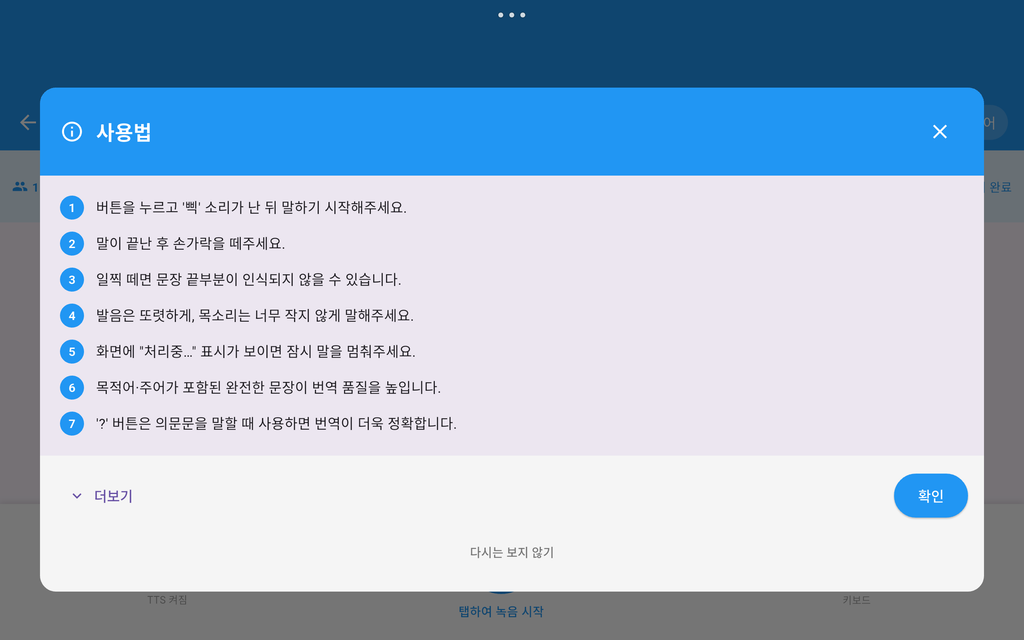
3.3 Usage Guide Dialog#
The first time you enter the app, a short usage guide is shown.
Usage guide dialog Item Description More Expands the detailed guide Confirm Closes the guide and opens the consultation screen Do not show again Hides this guide from now on
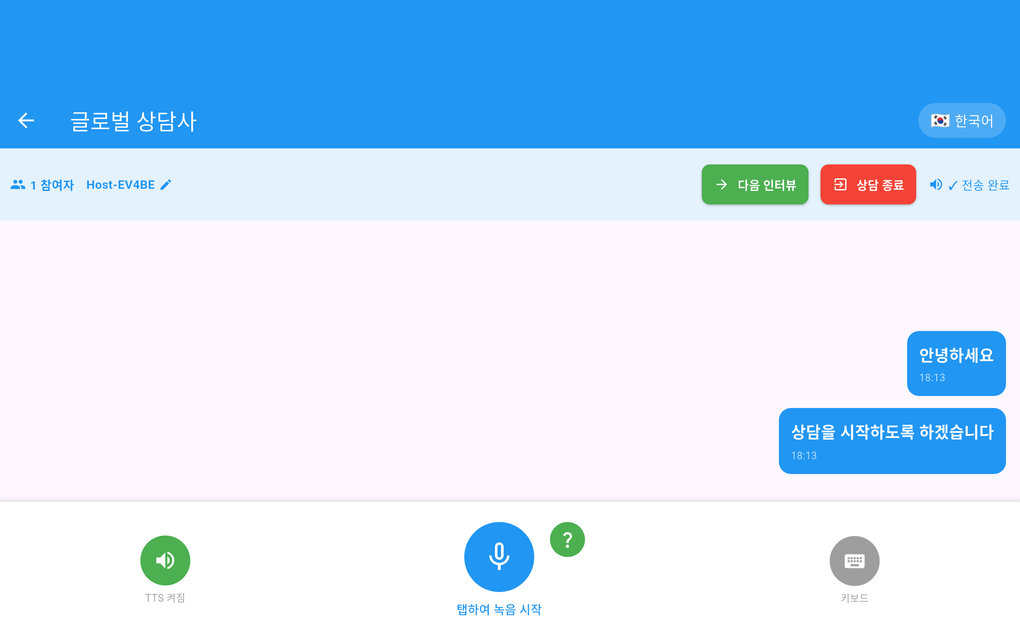
4. Communication Screen This is where the actual consultation takes place.
Full communication screen 4.1 Top Area#
Top area Element Description Back button Opens the end-consultation dialog Channel name Name of the current channel Language indicator The selected language (flag + name)
4.2 Status Bar#
Status bar Element Description Participant count Number of people currently connected Display name Touch to edit (✏ icon) Next Interview Shown only in interview mode (host only) End Consultation Opens the end-consultation dialog TTS status Speech output on/off state
4.3 Message Area#
Message area Type How it appears Your messages Blue bubble, right aligned Other person's messages Grey bubble, left aligned Source text Bold Translation Shown with a 🔄 icon
The sender's name and the time are shown alongside.
4.4 Bottom Controls#
Bottom control area Button Function TTS button Toggles speech output on and off Microphone button PTT voice input (records while held) Question button Question-mode voice input (appends ? automatically) Keyboard button Shows or hides the text input field
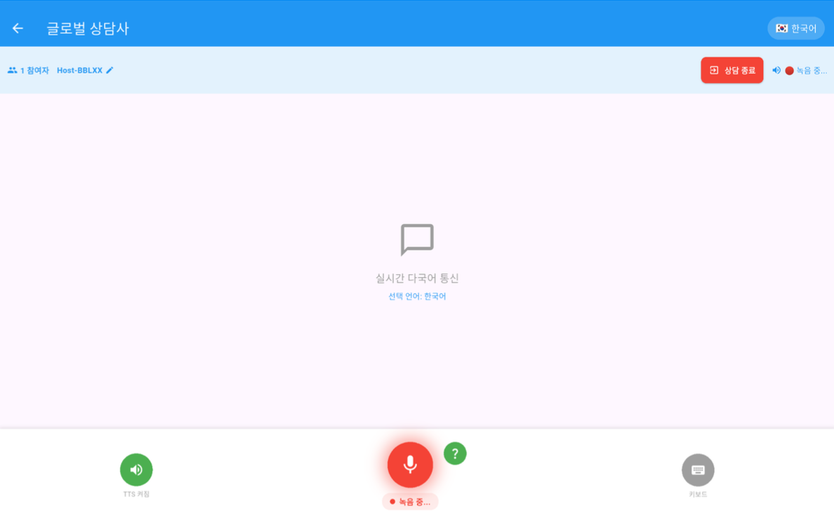
4.5 Speaking (PTT)#
PTT voice input
Press and hold the microphone button. Recording happens only while held.The button turns red and shows a recording message.
Release your finger when you finish speaking. The button returns to its normal colour and recognition ends.
Your speech is converted to text and sent automatically.
주의
Tapping and releasing immediately will not record anything. Keep holding the button the whole time you speak.
Question mode
Press and hold the question button.
Speak your question.
Release. Recognition ends and a ? is appended automatically.
4.6 Typing Instead#
Touch the keyboard button to show the input field.
Type your text.
Touch send.
4.7 Changing Your Display Name#
Temporary — this session only
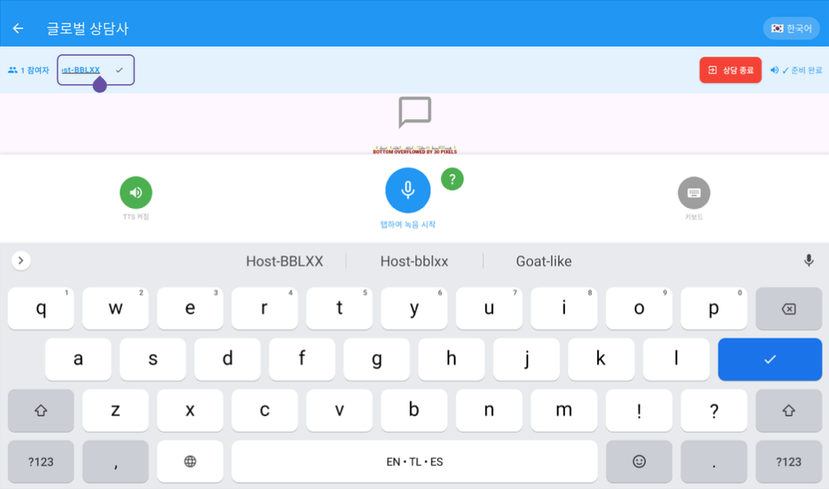
Editing the display name inline
Touch the ✏ icon next to the display name in the status bar.
Enter a new name.
Touch ✓ or press Enter.
Permanent — in Settings
Go to Settings → Account Information .
Enter a name in the default display name field.
Touch save.
4.8 Ending a Consultation#
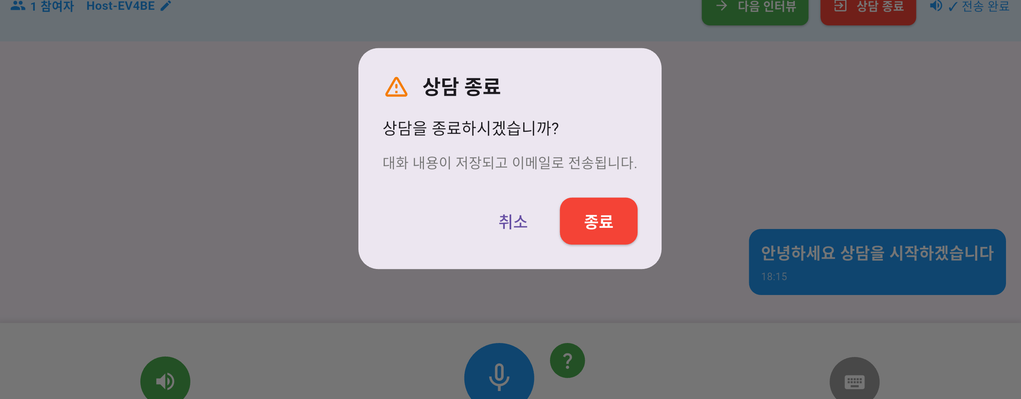
End consultation dialog There are two ways to end.
Method Steps End Consultation button Touch the red End Consultation button in the status bar → confirm Back button Touch ← at the top → confirm
What happens on ending
Host : the transcript is saved automatically.Guest : the session simply ends.If there are no messages at all, it ends without asking for confirmation.
5. Settings Screen The settings screen has a menu on the left and a content area on the right.
5.1 Field Selection#
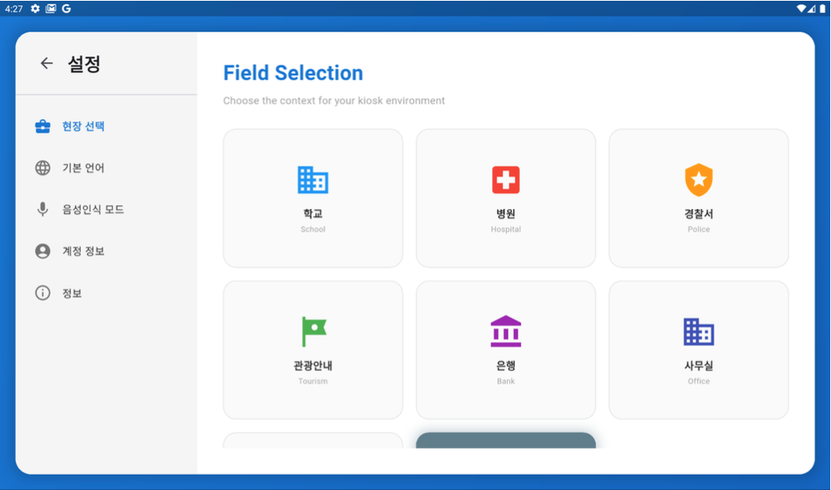
Choose the environment the kiosk is used in. Guidance text adapts to the selected setting.
Field selection screen Available options: School · Hospital · Police · Tourism · Bank · Office · Conference · General
5.2 Default Language#
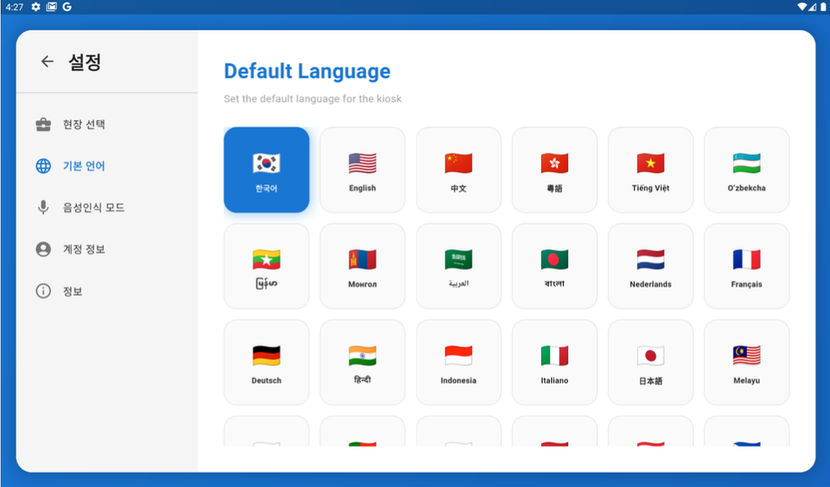
Sets the kiosk's default language.
Default language settings 중요
Cloud STT is Korean only. Selecting another language automatically switches to Device STT.
5.3 Speech Recognition Mode#
Speech recognition mode Mode Characteristics Device STT Real-time recognition, auto-corrects long sentences, supports all languages Cloud STT Korean-optimised. Switches to Device STT automatically for other languages
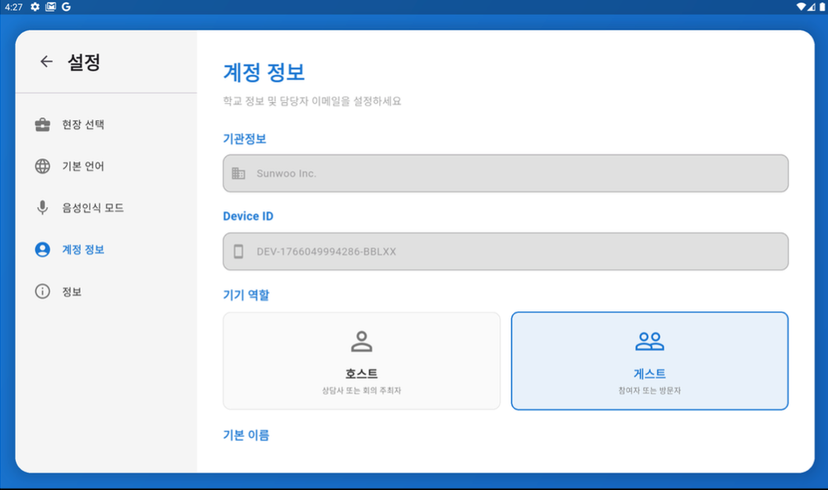
Account information screen Institution information (read only)
Institution name
Device ID
Device Role
Role Permissions Host For counsellors. Can view consultation history and email transcripts Guest For visitors. Can join conversations only; no access to history
주의
Changing the Device Role requires a PIN.
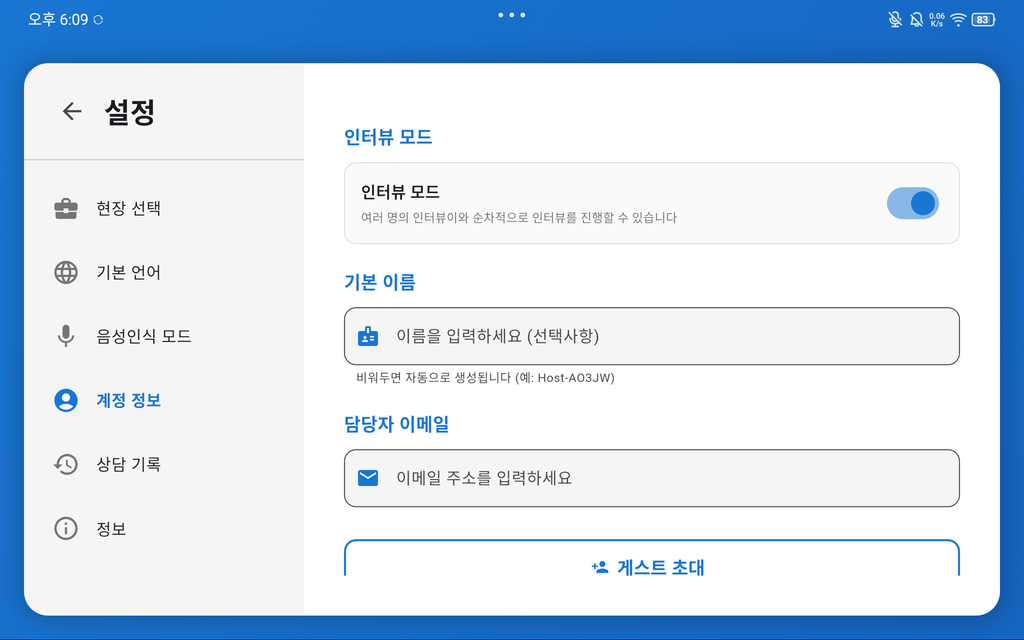
Interview Mode (host only)
Account information, lower half — interview mode and default name
Interview several interviewees one after another.
When enabled, a Next Interview button appears on the communication screen.
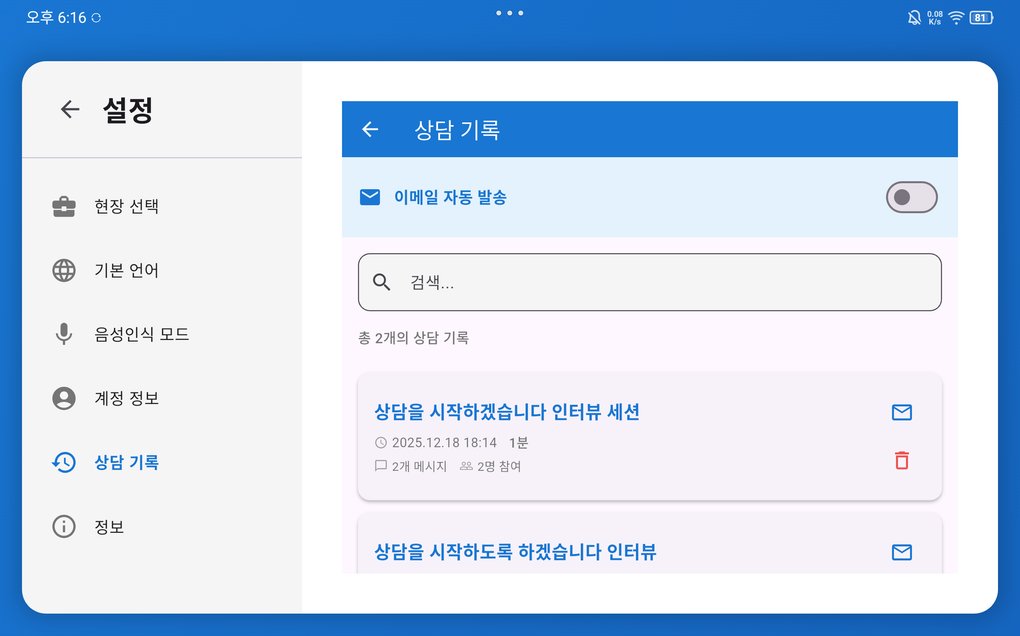
5.5 Consultation History (Host only)#
Consultation history screen
View the list of saved consultation sessions.
Open a session to see its detail.
Search within conversations.
Send a session by email.
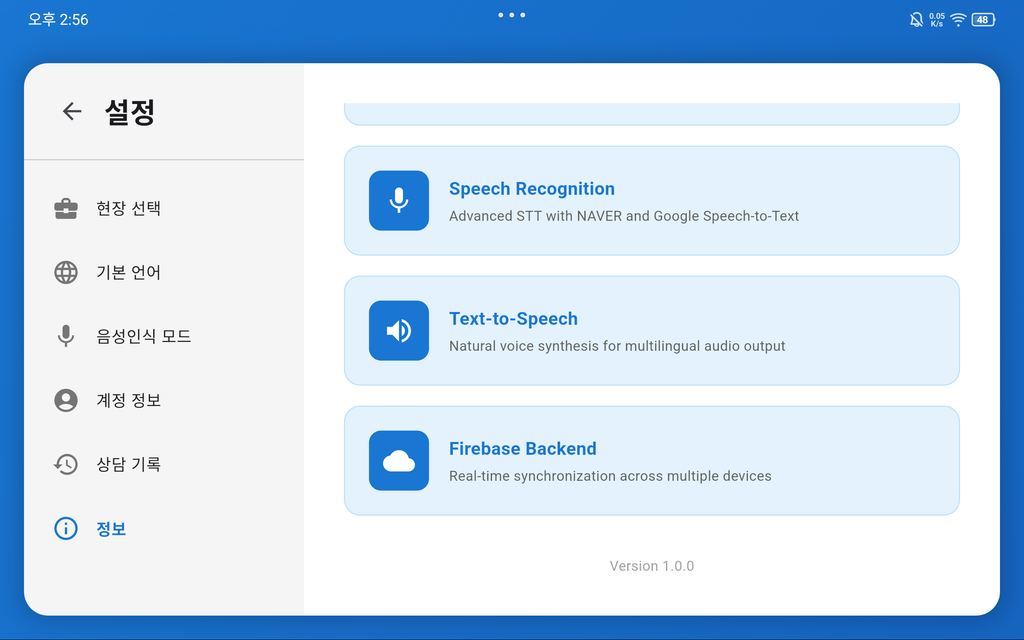
Shows the app version and a description of its features.
Information screen 6. Troubleshooting 6.1 Speech Recognition Not Working#
Symptom Cause Fix Microphone button is grey No microphone permission Allow microphone permission in settings Speech not recognised Network problem Check the internet connection Low accuracy Background noise Use in a quieter place A specific language is not recognised Unsupported locale It falls back to Device STT automatically
팁
If pressing the button seems to do nothing, check you are using PTT correctly — recording happens only while the button is held down.
6.2 Translation Not Working#
Symptom Cause Fix No translation shown Network error Check the internet connection Translation delayed Slow server response Retry after a moment
6.3 No Sound#
Symptom Cause Fix No sound TTS is off Turn TTS on with the button No sound Volume too low Raise the device volume No sound Speaker problem Check the device speaker
6.4 Connection Problems#
Symptom Cause Fix No Internet shownNetwork disconnected Check Wi-Fi or mobile data Messages not sending Server connection failed Restart the app Cannot see the other person's messages Sync problem Restart the app
6.5 Restarting the App#
Close the app completely.
Wait about three seconds.
Launch the app again.
7. Frequently Asked Questions Q1. How many people can talk at once?
There is no technical limit, but two to four is recommended for a smooth conversation.
Q2. Are conversations saved?
Yes — automatically, on the host device, when the consultation ends. View them under Settings → Consultation History .
Q3. Can I use it without internet?
No. Translation and speech recognition both require an internet connection.
Q4. How accurate is the translation?
It uses the Google Translation API and is generally accurate. Technical jargon and dialects may be less reliable.
Q5. How do I change the Device Role?
Go to Settings → Account Information , choose Host or Guest, and enter the PIN.
Q6. I press the microphone button but nothing seems to happen.
This is push-to-talk: you must speak while holding the button. Releasing it ends the recording.
Q7. What is the question (?) button for?
It sends your message as a question. When recognition finishes, a ? is appended automatically.
8. Technical Support 8.1 Support Channels#
Item Details Email support@klec.tech Phone 031-385-2251 Operating hours Weekdays 09:00 - 18:00
Device model name
App version (Settings → Information)
Description of the problem
Error message (if any)
Screenshot (if possible)
8.3 Icon Glossary#
Icon Meaning 🎤 Speech recognition (microphone) 🔊 Speech output on (TTS ON) 🔇 Speech output off (TTS OFF) ❓ Question mode ⌨ Text input 👥 Participant count 🔄 Translated ✏ Edit 📧 Email ✓ Done / success ⚠ Warning ❌ Error